HOW TO ORDER A LASER-CUT PART
Traditionally you only find out what a laser-cut part costs once a workshop has gone through your drawing and sent a quote. At LeikePaja you draw the part in your browser or import a finished DXF, see the price straight away and send the order in one sitting. You only pay once the cutting shop has checked and approved the drawing.
The ordering process was renewed in September 2026: the drawing tool and the website got a new look, the cart was rebuilt, and you can now draw several parts in one drawing using different colours. Here is how an order works now, from start to finish.
The drawing tool's interface is in Finnish, so the Finnish button labels are given in brackets below.
1 DRAW, IMPORT A DXF OR PICK FROM THE LIBRARY
The drawing tool opens directly in your browser at leikepaja.fi/cadonline.html, with nothing to install. There are three ways to start a part:
- Draw it yourself. Tools include line, rectangle, circle, arc, dimension and fillet, plus mirror, rotate, copy and hole rows and hole circles.
- Import a DXF. If the part is already drawn in another program, import the file with the Import DXF button (Tuo DXF) in the top bar.
- Pick from the library. Ready-made parts are behind the Library button (Kirjasto), see below.
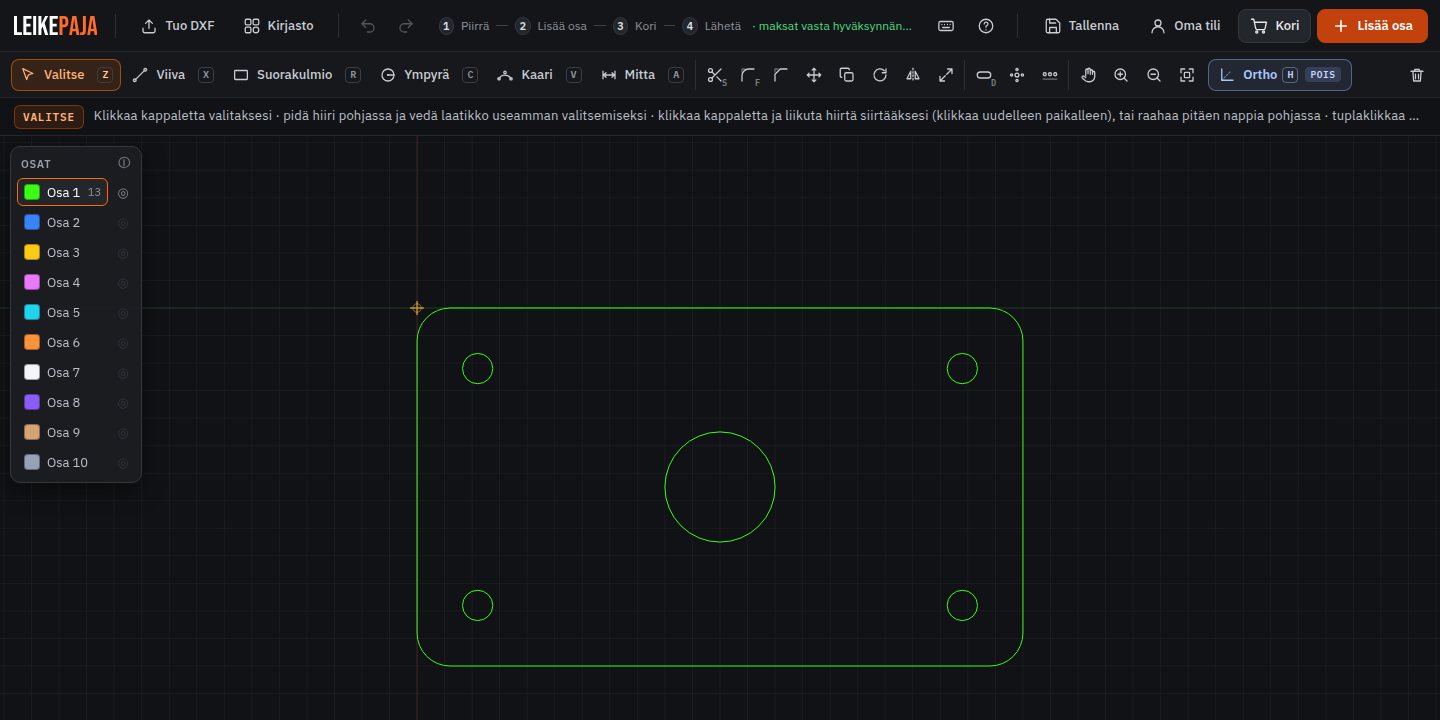
In the new layout, each tool shows its keyboard shortcut right on the button, and Ortho lock (horizontal and vertical lines only) has its own button. On a phone you can pinch to zoom, but drawing is most comfortable on a computer.
2 ADD THE PART TO THE CART
When the part is ready, press Add part (Lisää osa). The tool checks the drawing before the part goes into the cart:
- are there gaps in the outlines (open contours)
- are any holes too small for the plate thickness. The check also covers square holes and slots.
- does the part fit within the maximum cutting size of 1500 × 3000 mm
If everything is fine, the part goes straight into the cart. There is no longer a separate dialog for material or quantity, because you choose those in the cart.
3 CHOOSE MATERIAL AND QUANTITY IN THE CART
The new cart lists your parts with preview images. For each part you set a name, material, thickness, quantity and optional notes. The price updates as soon as you change anything.
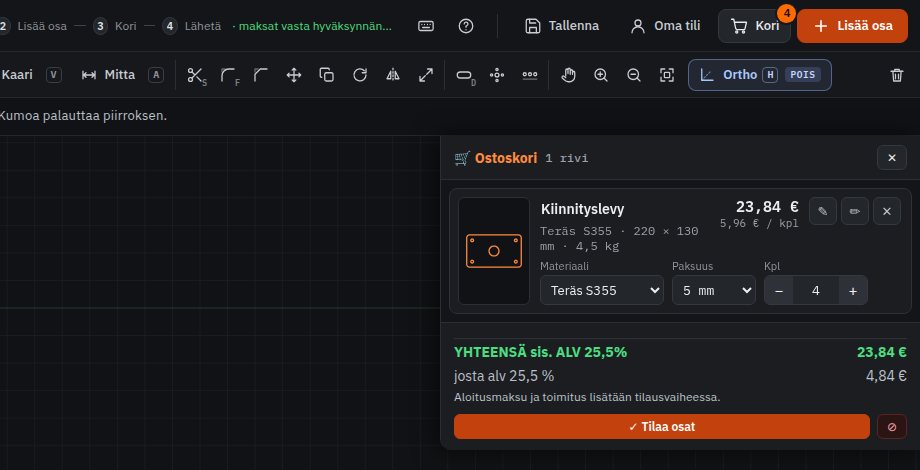
Available materials are S355 steel, Hardox 400 wear plate, stainless steel 1.4307 and aluminium 5754. Thicknesses vary by material, see Materials. If you spot a mistake in the drawing while in the cart, open the part back on the drawing area, fix it and press Save changes (Tallenna muutokset).
4 ORDER THE PARTS
Press Order parts (Tilaa osat) in the cart, fill in your contact details, choose a delivery method, accept the terms and send the order. Before sending you see a breakdown that shows the start fee and delivery on top of the parts.
5 REVIEW, PAYMENT AND CUTTING
The cutting shop usually reviews the drawing within 1–2 working days and sends a confirmation. You pay only after approval, always before cutting. Payment methods are card, Apple Pay, Google Pay, MobilePay and Finnish online banking.
Cutting typically takes 1–5 working days depending on the size of the order and the shop's workload. An estimate is given in the confirmation.
NEW: SEVERAL PARTS IN ONE DRAWING
The parts bar on the left has 10 colours, and each colour is its own part. When you draw parts that fit together, draw each one in its own colour. Different colours may overlap, which makes it easy to line up tabs, slots, dovetail joints and the holes for stiffeners. The eye button shows just one part at a time.
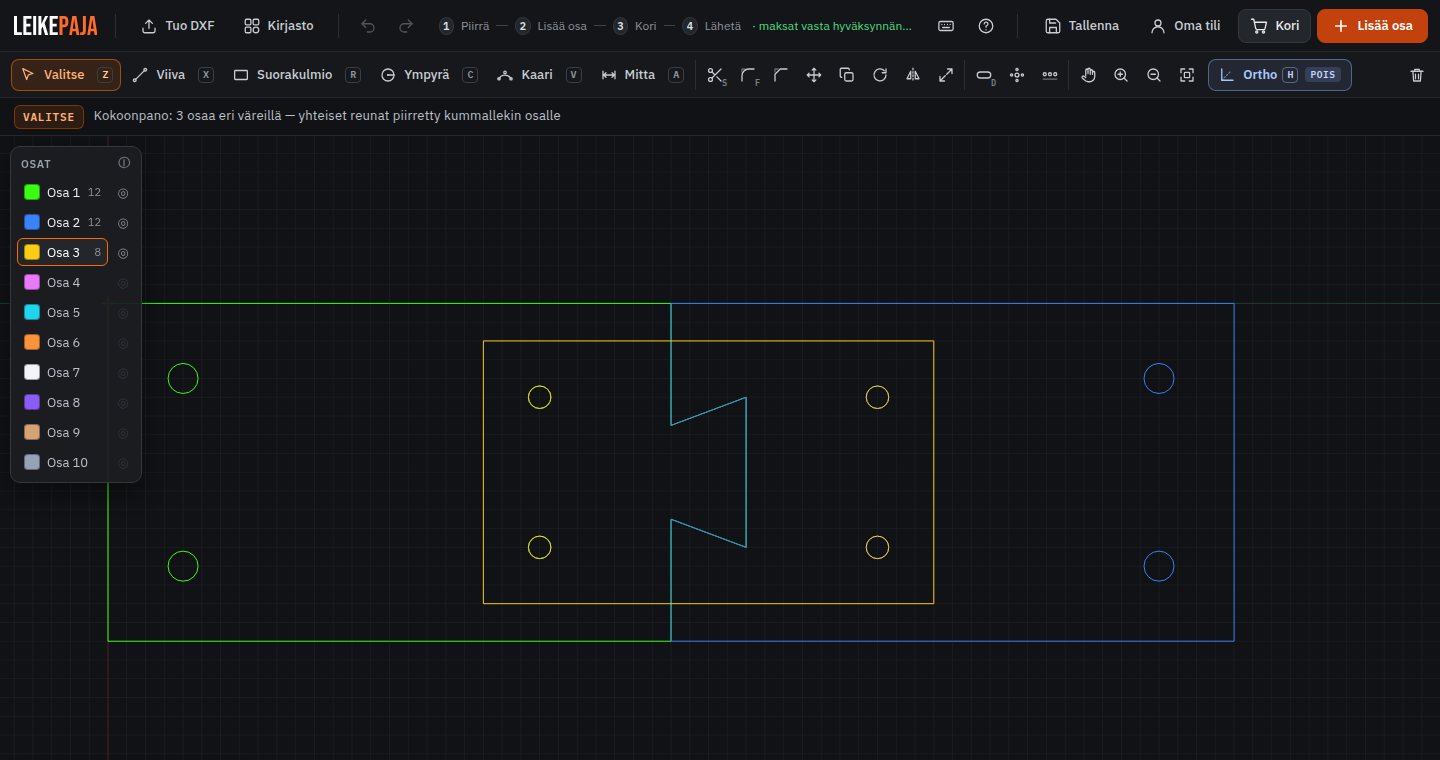
When you press Add part, the assembly is split into separate parts. Each colour is checked and priced on its own, and in the cart you can choose a separate thickness and quantity for each. The same works when you import a DXF that contains several parts.
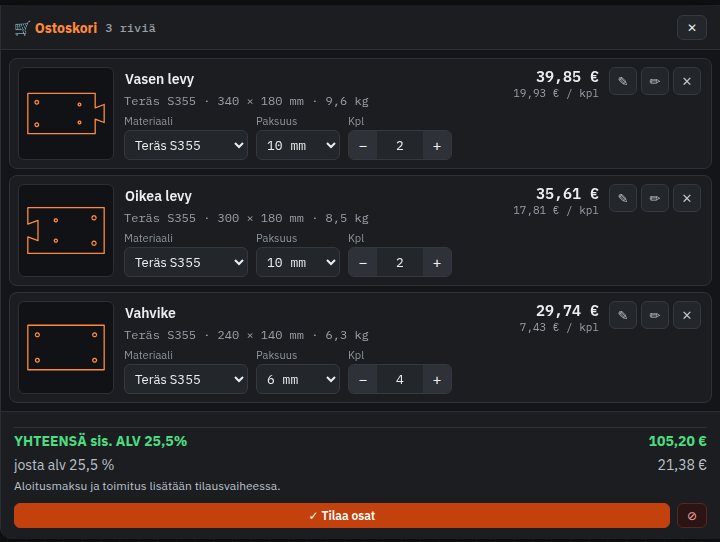
Leave clearance. The tool does not check whether the parts fit together. Design suitable clearance into tabs and slots yourself.
HOW THE PRICE IS BUILT
The price of a part depends on the material, thickness, length of the cutting path and the number of pierces, meaning how many holes and openings are cut. All prices are shown including 25.5% Finnish VAT. There are no volume discounts.
On top of the parts, the order includes a start fee and the delivery you choose: home parcel, freight priced by weight, or pickup in Lappajärvi with no delivery charge. All of these are shown in the order breakdown before you send the order.
Combine several parts into one order. The start fee is charged once per order, so it is shared across more parts.
The current total is always shown in the cart and in the order breakdown before you send the order. Companies have a separate business portal (in Finnish) with prices excluding VAT and ordering on invoice.
LIBRARY: READY-MADE PARTS
The Library button opens ready-made parts sorted into folders, for example shaft shims, CAT brackets, machine lugs, NTP shims and S-brackets. The load button (Lataa canvasille) brings a part onto the drawing area, and from there you add it to the cart just like a part you drew yourself.
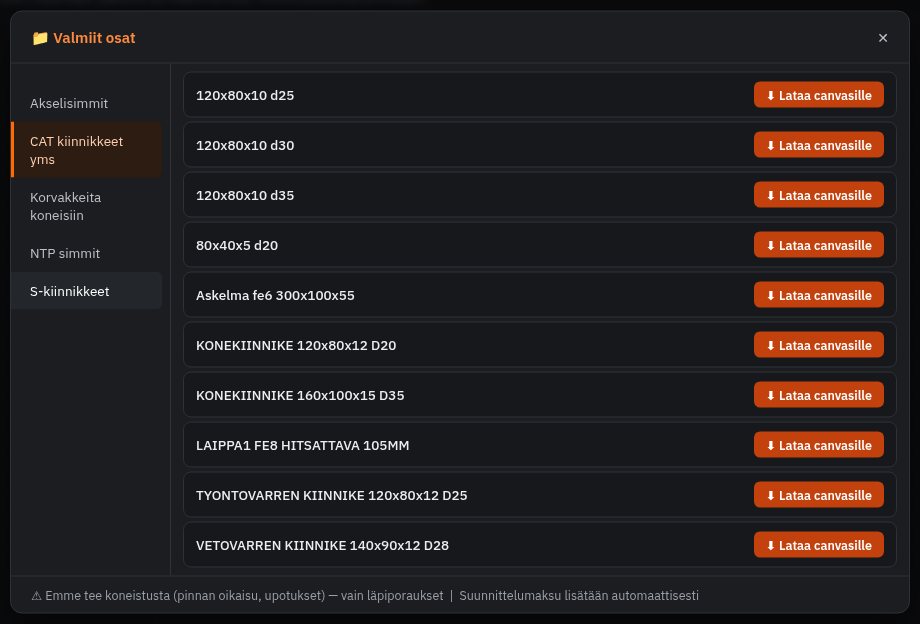
Library parts carry a design fee, which is included in the order price.
MY ACCOUNT: FREE AND OPTIONAL
You can order without logging in. A free My account (Oma tili) lets you save your designs and open them again later, and your order form details are filled in for you. Create an account with the My account button in the drawing tool's top bar.
TIPS FOR PREPARING A DXF
If you draw the part in your own CAD program, these guidelines help your file pass the check the first time:
- 1:1 scale in millimetres. Draw the part at its real size, not scaled.
- Closed contours. The outer edge and every hole must be one continuous, closed line with no gaps or overlapping segments.
- DXF only, cutting geometry only. DWG files and dimensioned assembly drawings cannot be used. Remove dimensions, text, centre lines and frames. A multi-part DXF is fine as long as it contains only the shapes to be cut.
- Smallest hole. For laser cutting, the hole diameter must be at least the plate thickness. 30 and 40 mm steel is flame cut, and then holes must be at least 1.25 × the thickness.
- Through holes only. No machining such as countersinks or surface facing.
- Up to 1500 × 3000 mm. Tolerance is ±2 mm for laser cutting and ±5 mm for flame cutting.
TRY IT YOURSELF
Draw a part, import a DXF or pick one from the library, and see the price straight away. You only pay once the drawing is approved.
Questions? info@leikepaja.fi
Prices and the worked example are based on the price list in effect on 27 Sep 2026. The final order total is always shown in the order breakdown before you send the order.